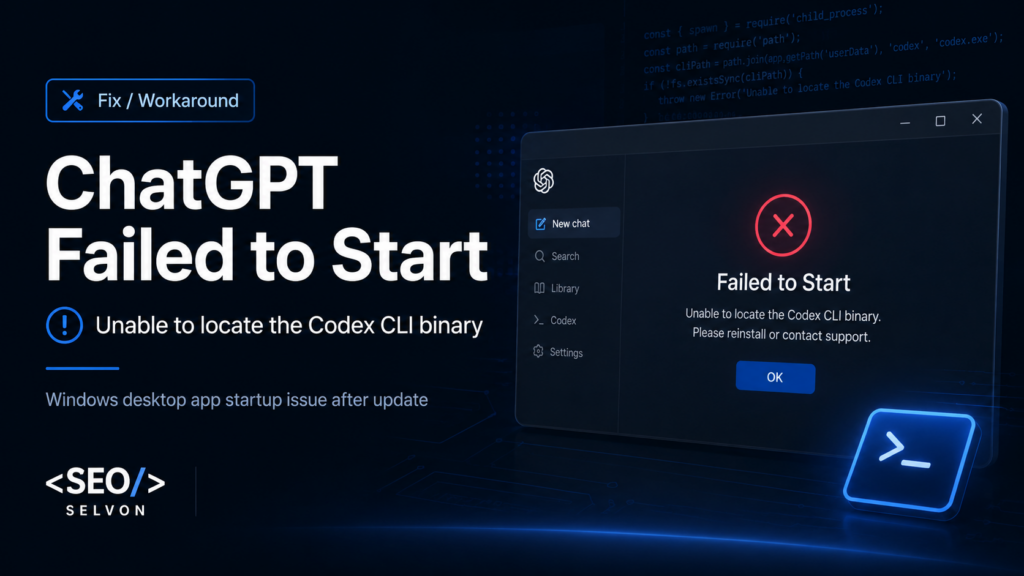
If the ChatGPT desktop app suddenly refuses to open on Windows and displays the message “Unable to locate the Codex CLI binary”, you are probably not dealing with a broken Windows installation, corrupted project or something you accidentally changed.
On 26 August 2026, I encountered the problem myself after the ChatGPT/Codex desktop app had previously been working normally. Instead of opening, the application immediately displayed:
ChatGPT failed to start.
Unable to locate the Codex CLI binary. SetCODEX_CLI_PATHor ensure the Electron resources includebin/codex.
More importantly, this does not appear to be an isolated machine-specific issue.
A bug report was opened in OpenAI's public Codex GitHub repository on 26 August describing the same startup failure on Windows 11 x64 after updating to desktop version 26.820.60940. The report is currently labelled as an app, Windows and bug issue.
There is also a working temporary workaround: install or locate the native Codex executable and point the ChatGPT desktop application directly to codex.exe.
This guide explains what is happening, why simply reinstalling may not solve it, how to fix the problem safely and what to do if you encounter the secondary spawn EINVAL error.
What Does “Unable to Locate the Codex CLI Binary” Mean?
The error sounds more complicated than it actually is.
The ChatGPT desktop application now brings Chat, Work and Codex together in the same Windows application. OpenAI explains that users of the previous Codex desktop application are being moved to the newer ChatGPT desktop app, while Codex remains the development-focused part of the application.
That helps explain why you can receive an error mentioning Codex even though the window itself is titled ChatGPT.
Codex relies on a command-line executable behind the scenes. On Windows, the important native executable is:
codex.exe
The desktop application expects to be able to find and launch that executable.
The current reported problem appears to occur when the application cannot find the copy of the Codex binary it expected to have available inside its packaged Electron resources.
The GitHub report describes the failure as the desktop client being unable to locate its bundled internal binary within the expected resources directory.
In other words, the graphical application itself exists and starts far enough to show an error dialog, but one of the binaries it relies upon cannot be located.
Is This a Current ChatGPT Windows App Bug?
There is strong evidence that at least some instances are related to the latest desktop update.
The public report submitted on 26 August 2026 gives the following environment:
Desktop version: 26.820.60940
Operating system: Windows 11 x64
Error: Unable to locate the Codex CLI binary
The reported reproduction process is simply to update the desktop application to that version and then attempt to launch it.
At the time of writing, the GitHub issue remains open and does not show an associated pull request or completed fix.
That distinction is important.
This is currently a reported and reproducible bug, but I would avoid claiming that OpenAI has officially confirmed every instance of the error as being caused by the update until a maintainer publishes further information.
However, if your application was working normally before the update and began displaying this exact error immediately afterwards, the symptoms line up extremely closely with the reported Windows issue.
Before Changing Anything: Check for Another Update
Because this appears to be update-related, your first step should be the simplest one.
If the startup error window gives you a Check for Updates button, use it.
OpenAI may release a patched desktop build that restores the missing bundled executable, making the manual workaround unnecessary.
If an update is available:
Install it, completely close the ChatGPT desktop application and then launch it again.
If the application still produces:
Unable to locate the Codex CLI binary
continue with the workaround below.
How to Fix “Unable to Locate the Codex CLI Binary” on Windows
The workaround reported to work is to give the desktop application the location of a real native codex.exe executable.
The important word here is native.
Do not simply point CODEX_CLI_PATH to codex.cmd, because that can trigger a second Windows-specific problem that I explain further down.
Step 1 – Open PowerShell
Open the Windows Start menu, search for:
PowerShell
and launch Windows PowerShell or PowerShell 7.
You normally do not need to delete your ChatGPT application data, Codex configuration or development projects.
Step 2 – Install the Official Codex CLI
OpenAI provides an official standalone installer for Codex on Windows.
Run:
powershell -ExecutionPolicy ByPass -c "irm https://chatgpt.com/codex/install.ps1 | iex"
This is the current Windows installation command documented in OpenAI's official Codex repository. OpenAI's installer downloads the standalone Codex package and installs the Windows executable locally.
If you already have Codex installed, the installer may detect the existing installation.
Codex can alternatively be installed through npm:
npm install -g @openai/codex
However, for this particular desktop startup problem, I prefer the official standalone installer because what I ultimately need is the actual Windows codex.exe binary rather than an npm command wrapper.
Step 3 – Confirm Codex Works
Once installation finishes, open a new PowerShell window and run:
codex --version
If Codex responds with a version rather than an error, the CLI installation itself is functioning.
OpenAI's Windows installer also verifies its installed codex.exe by executing it with --version, so this is essentially repeating a similar check manually.
Step 4 – Locate the Native codex.exe
I now need the exact file path.
Try:
Get-ChildItem "$env:USERPROFILE\.codex" -Filter codex.exe -Recurse -ErrorAction SilentlyContinue | Select-Object -ExpandProperty FullName
Depending on the Codex version and installation layout, you may receive one or more paths.
You are looking for a path ending in:
codex.exe
For newer standalone Codex packages, OpenAI's Windows installer stores installations under the user's .codex directory and its package layout contains a native bin\codex.exe.
Do not worry if your precise folder structure differs from another person's installation. The important part is finding an executable that actually exists and runs.
Step 5 – Test the Exact Executable
Before changing any environment variables, test the executable directly.
For example:
& "C:\Users\YOURNAME\.codex\...\bin\codex.exe" --version
Replace the example path with the path PowerShell returned on your computer.
If it returns a Codex version successfully, you have found a usable native executable.
Step 6 – Set CODEX_CLI_PATH
Now tell the ChatGPT desktop application exactly where that executable is.
Run:
setx CODEX_CLI_PATH "C:\FULL\PATH\TO\codex.exe"
For example:
setx CODEX_CLI_PATH "C:\Users\YourName\.codex\packages\standalone\current\bin\codex.exe"
Your actual installation path may be different, so do not blindly copy the example path.
Use the path returned on your own computer.
After running setx, you should receive confirmation that the value was saved.
Step 7 – Completely Restart ChatGPT
Do not simply click the application icon again while an old process is still running.
Close ChatGPT completely.
If necessary, open Task Manager and make sure the ChatGPT/Codex process has stopped.
Then reopen the application.
The reported workaround is that pointing CODEX_CLI_PATH directly to the underlying native executable allows the Windows desktop application to start successfully.
Getting spawn EINVAL Instead? This Is Important
There is a second error you may run into while attempting this fix:
spawn EINVAL
This can happen if you set:
CODEX_CLI_PATH
to the npm wrapper:
codex.cmd
rather than the real:
codex.exe
The current GitHub report documents exactly this behaviour.
According to the report, the desktop application's Electron process attempts to execute the .cmd wrapper directly through Node's child_process.spawn(). That can fail on Windows and produce spawn EINVAL.
So a path resembling:
C:\Users\YourName\AppData\Roaming\npm\codex.cmd
is not the path you want for this workaround.
Instead, locate the underlying native executable.
An npm-based installation can contain it somewhere inside the OpenAI Codex package structure, with the current bug report giving an example underneath the platform-specific codex-win32-x64 package.
Your objective remains the same:
CODEX_CLI_PATH = ...\codex.exe
not:
CODEX_CLI_PATH = ...\codex.cmd
That small distinction may be the difference between fixing the original error and replacing it with another one.
Why Reinstalling ChatGPT Might Not Immediately Fix It
Normally, when an application complains about a missing executable, reinstalling it would be an obvious solution.
It is still worth trying if a patched build becomes available.
However, if the problem exists inside the packaging or updater for the affected desktop version, reinstalling the same version could simply reproduce the same state.
The public bug report suggests that the installer/updater should ensure the native Codex executable is correctly bundled or extracted into the application's expected resources.
That is why manually providing a valid CODEX_CLI_PATH can work as a temporary workaround: instead of waiting for the application to find its bundled copy, you explicitly tell it where a working copy exists.
Should You Delete Your .codex Folder?
I would not use deleting the entire .codex folder as an early troubleshooting step.
That directory can contain Codex configuration and other local data.
The error itself specifically says that the application cannot locate the CLI binary. Nothing in the current public report suggests that wiping all of your local Codex configuration is required to solve that particular problem.
A targeted fix is preferable:
Find or install codex.exe, verify that it runs, set CODEX_CLI_PATH, restart the desktop application.
Only start clearing application data if official troubleshooting guidance specifically calls for it or you have backed up anything important first.
How to Check the Environment Variable
If you have already set CODEX_CLI_PATH and want to see what Windows currently has stored, open a new PowerShell window and run:
[Environment]::GetEnvironmentVariable("CODEX_CLI_PATH", "User")
It should output the path to your native executable.
You can also verify that the file actually exists:
Test-Path ([Environment]::GetEnvironmentVariable("CODEX_CLI_PATH", "User"))
If PowerShell returns:
True
the file exists at the stored location.
If it returns:
False
your environment variable is pointing to an invalid or outdated path.
How to Remove CODEX_CLI_PATH Later
This workaround may only be needed temporarily.
If OpenAI releases a desktop update that restores normal bundled Codex detection, you may prefer to remove your custom environment variable and allow the application to use its default behaviour again.
In PowerShell:
[Environment]::SetEnvironmentVariable("CODEX_CLI_PATH", $null, "User")
Then completely restart the application.
You do not necessarily need to remove the variable immediately after an app update if everything is working, but removing a temporary workaround later can prevent an old hard-coded executable path from causing confusion if Codex changes its installation layout.
Is Codex Still Installed If ChatGPT Will Not Open?
Possibly.
The desktop application's inability to locate its own expected binary does not automatically mean that the standalone Codex CLI is missing from your computer.
You can test this independently from PowerShell:
codex --version
If that works, your CLI installation exists.
If:
where.exe codex
returns a location, Windows also knows about a Codex command on your PATH.
Remember, though, that where.exe codex may return an npm .cmd wrapper. That can be perfectly usable from your terminal while still being unsuitable as the value of CODEX_CLI_PATH for the affected desktop build.
For the workaround discussed in this article, find the native codex.exe.
Is the ChatGPT Web Version Affected?
This specific problem concerns the Windows desktop application and its local Codex executable.
Regular ChatGPT in your browser does not depend on the desktop application's local codex.exe in the same way.
OpenAI also describes Codex as the desktop development experience that can work directly with local folders, repositories, terminals and developer tools.
So if you urgently need normal ChatGPT while diagnosing the desktop application, the web interface should remain a separate option.
For development workflows that specifically depend on local Codex desktop integration, however, the desktop application obviously needs to start correctly.
Frequently Asked Questions
Why did ChatGPT suddenly stop opening?
If the failure appeared immediately after updating the Windows desktop app and you are running version 26.820.60940, your symptoms match a currently open Codex GitHub bug report submitted on 26 August 2026.
What is CODEX_CLI_PATH?
It is an environment variable that can tell the application exactly where the Codex CLI executable is located.
For this workaround, it should point directly to a working native Windows codex.exe.
Should CODEX_CLI_PATH point to codex.cmd?
For the affected Windows desktop version, no.
The current issue report shows that pointing it to codex.cmd can result in:
spawn EINVAL
Point it to the underlying codex.exe instead.
Is the PowerShell Codex installer official?
Yes.
OpenAI's Codex repository currently documents the Windows installation command:
powershell -ExecutionPolicy ByPass -c "irm https://chatgpt.com/codex/install.ps1 | iex"
The repository also documents npm as an alternative installation method.
Will this delete my Codex projects?
Setting CODEX_CLI_PATH simply adds a Windows user environment variable. It does not require deleting your repositories or project folders.
I would specifically avoid wiping .codex or unrelated application data unless there is a separate reason to do so.
Do I need administrator PowerShell?
Usually, a user-level Codex installation and user environment variable should not require changing system-wide settings. If your organisation manages your Windows device, however, its security policies may affect installation and environment-variable changes.
Should I leave this workaround permanently?
Probably not intentionally.
Once a confirmed patched desktop build is available and the application correctly finds its bundled Codex binary again, allowing the desktop client to manage its normal executable location is cleaner than depending forever on a manually configured path.
Final Thoughts
The “ChatGPT failed to start – Unable to locate the Codex CLI binary” message initially looks like a serious local installation failure, particularly when the application had been working perfectly the day before.
The evidence available on 26 August 2026 points instead towards a Windows desktop application regression affecting at least version 26.820.60940.
The safest temporary approach is relatively straightforward:
- Check for another ChatGPT desktop update first.
- Install the official Codex CLI if necessary.
- Locate the actual native
codex.exe. - Confirm the executable works using
--version. - Set
CODEX_CLI_PATHto that.exe. - Do not point it to
codex.cmd, as this may triggerspawn EINVAL. - Completely restart the ChatGPT desktop application.
- Remove the temporary environment variable later once an official desktop fix makes it unnecessary.
I will update this article if the affected desktop build is patched or OpenAI publishes additional information about the underlying Windows issue.
Last updated: 26 August 2026.

Join the discussion
Comments & Conversation
Have a question or a different perspective? Add it below.